Design Editor
Edit images with text, filters, and more.
The Design Editor lets you edit images directly in Flamel without switching to external software like Photoshop or Canva. Add text overlays, apply filters, crop to different aspect ratios, and make your images post-ready — all within the same workflow where you create your content.
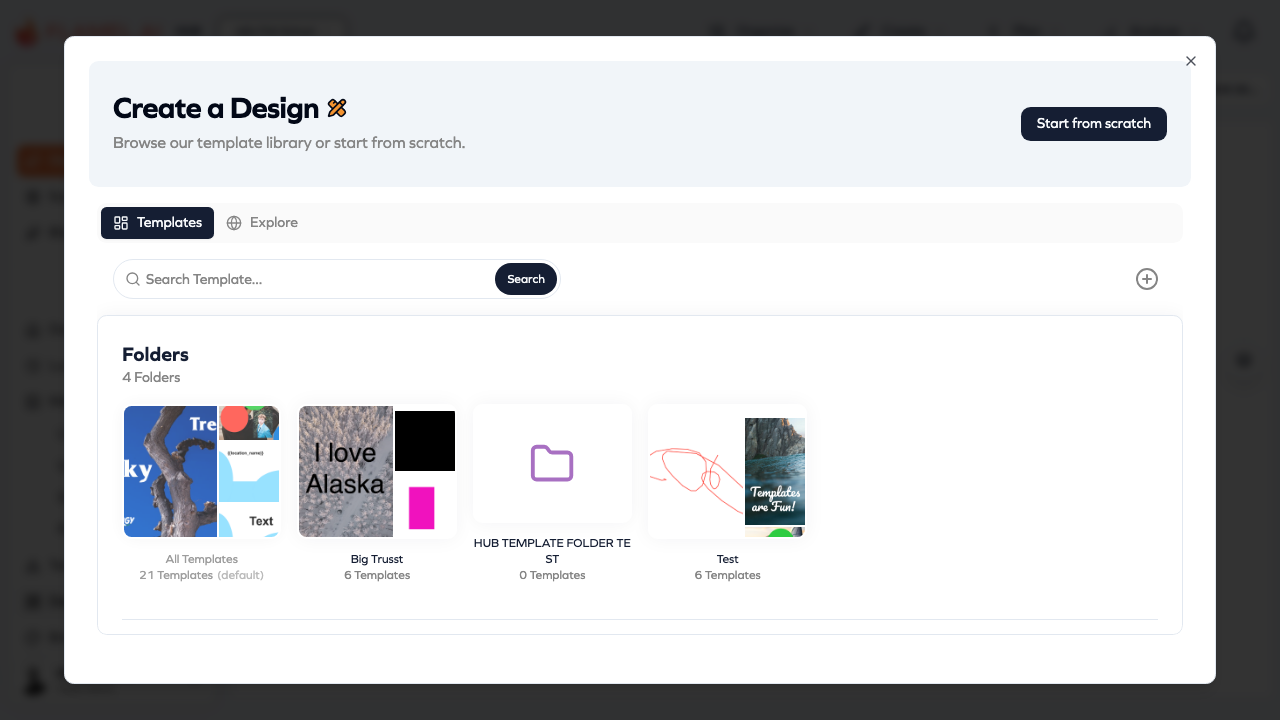
Opening the Editor
There are two ways to start editing an image.
From your Media Library, click on any image to open its preview, then click Edit or Design. The editor opens with that image loaded and ready for modifications.
Alternatively, click Design in the sidebar to open the editor directly. From there, you can select an image from your library or upload a new one to edit.
The editor also opens automatically when you click the edit button on images already attached to posts or templates, so you can make adjustments without leaving your content creation flow.
Cropping and Resizing
Social media platforms have different ideal image dimensions, and what works on Instagram may not work on LinkedIn. The design editor makes it easy to crop images for any platform.
Drag the corners or edges of the crop boundary to adjust manually, or use the preset aspect ratios to crop precisely for specific platforms. The presets include common formats:
| Preset | Ratio | Best For |
|---|---|---|
| Square | 1:1 | Instagram feed, Facebook profile |
| Portrait | 4:5 | Instagram feed (tall) |
| Story | 9:16 | Instagram/Facebook Stories, TikTok |
| Landscape | 16:9 | YouTube thumbnails, Twitter |
| 1.91:1 | Facebook link previews, LinkedIn |
When you select a preset, the crop tool locks to that ratio, ensuring your final image fits perfectly on the intended platform.
Adding Text
Text overlays transform simple photos into engaging graphics. Click the text tool to add a text box, then type your message.
The text editor gives you control over typography: choose from your brand fonts (configured in Brand Kit) or standard web fonts, adjust size and color, set alignment, and add effects like shadows or outlines to ensure readability over any background.
Position text by dragging it anywhere on the canvas. For precise placement, use alignment guides that appear when your text approaches the center or edges of the image.
Keep mobile viewers in mind — text that looks fine on a desktop preview may be too small to read on a phone screen. When in doubt, make text larger than you think necessary.
Applying Filters and Adjustments
Filters give your images a consistent visual style. Apply a preset filter for an instant mood shift, or dive into manual adjustments for precise control.
The adjustment controls include brightness, contrast, saturation, warmth, and more. These let you correct exposure issues, enhance colors, or create specific visual effects.
For brand consistency, find a combination of adjustments you like and apply similar settings across your content. This creates a cohesive look in your feed even when source images vary.
Shapes, Stickers, and Drawing
Beyond text and filters, the editor includes additional creative tools.
Shapes let you add geometric elements — rectangles, circles, lines, arrows. Use these to create frames, highlight areas, or build graphic compositions.
Stickers provide pre-made graphic elements you can place on your images. These range from decorative elements to functional icons.
Drawing tools let you add freehand marks. This is useful for annotations, signatures, or playful doodles.
Layer these elements by adjusting their order — send elements backward or bring them forward to create the composition you want.
Saving Your Work
When you're finished editing, click Save to preserve your changes. You'll have options for how to save:
Save as new creates a new file in your library, preserving the original image unchanged. This is the safer option when you might want the unedited version later.
Replace original overwrites the source image with your edited version. Use this when you're certain you won't need the original.
Saved images appear in your Media Library and can be used anywhere in Flamel — posts, ads, templates, and more.
Working Efficiently
A few practices make design editing faster and more consistent.
Start with high-quality source images. The editor can enhance images, but it can't add detail that isn't there. Larger source files give you more flexibility when cropping.
Save your brand colors in the Brand Kit so they appear instantly when choosing colors for text or shapes. This beats manually entering hex codes every time.
Consider creating a few edited images as "style references" — examples of the look you want. When editing new images, refer back to these to maintain visual consistency.
If you find yourself making the same edits repeatedly, consider whether a template might save time. Templates can include pre-positioned text and design elements that you simply customize with each use.