Templates
Use pre-designed templates to create consistent, branded content.
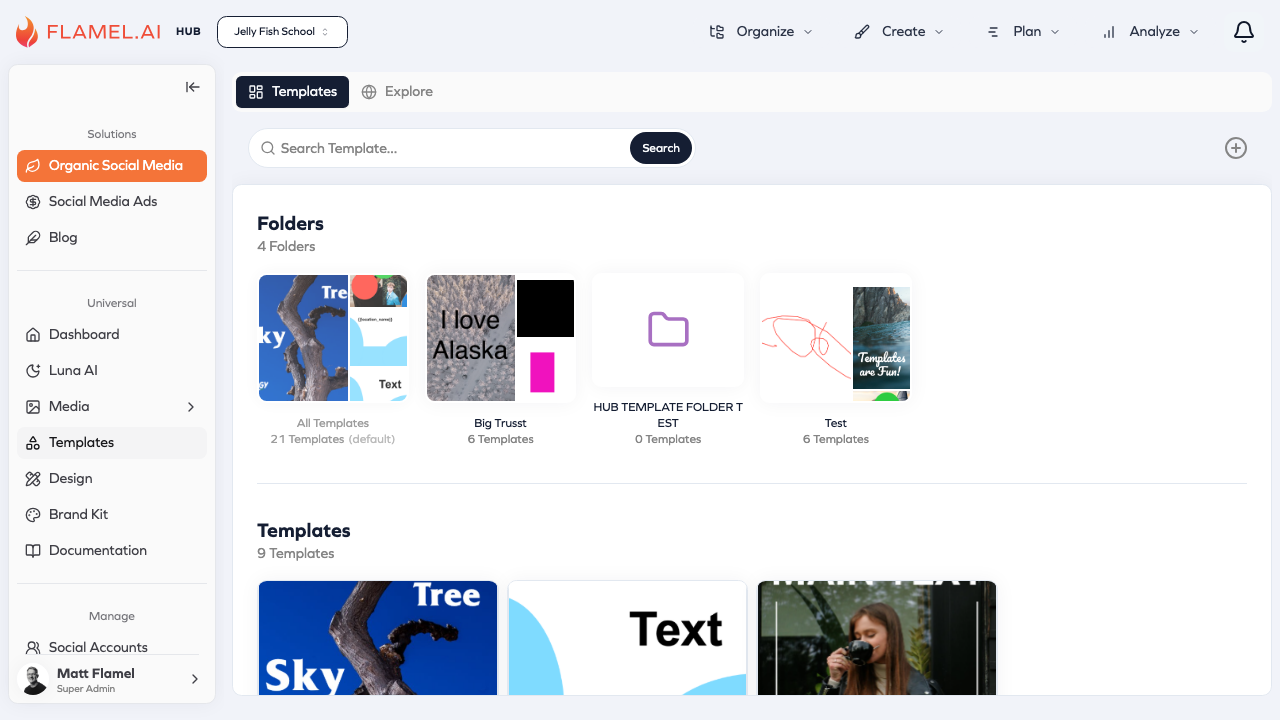
Templates are pre-designed layouts that speed up content creation while maintaining brand consistency. Instead of starting from scratch every time you need a promotional graphic or announcement post, you select a template, customize the text and images, and you're ready to publish.
Why Templates Matter
Creating professional-looking content takes time and design skill. Templates remove that barrier by providing layouts that already look good — proper spacing, attractive typography, balanced composition. You focus on the message; the template handles the design.
For teams, templates ensure everyone creates content that meets brand standards. Even team members without design experience can produce polished graphics when they start with a well-designed template.
For franchises, templates are transformative. Hub users create brand-approved templates that every franchisee can use, ensuring visual consistency across hundreds of locations without requiring each one to hire a designer.
Browsing the Template Library
Click Templates in the sidebar to open the template library. You'll see available templates displayed as preview cards showing how each one looks.
Use filters to narrow your options. Filter by platform (Instagram, Facebook, LinkedIn, etc.) to see templates sized for that network. Filter by category (promotional, announcement, seasonal) to find templates matching your content type.
Click any template to see a larger preview with details about its dimensions and intended use. From the preview, you can start using the template immediately or save it to your favorites for quick access later.
Using Templates
There are two ways to use templates depending on where you are in your workflow.
From the Templates Page
When browsing templates, click Use Template on any template you want to work with. This opens the template in the editor where you can customize text, swap images, adjust colors, and make it your own. When finished, save the result to your media library or use it directly in a post.
While Creating a Post
In the post editor, click the Templates button when adding media. This opens a template picker within the post creation flow. Select a template, customize it, and it attaches directly to your post — all without leaving the editor.
This workflow is particularly efficient when you know you need a template for a specific post and want to minimize context-switching.
Types of Templates
Templates come in several categories based on their purpose and format.
Social post templates are designed for feed content on Instagram, Facebook, LinkedIn, and other platforms. These typically feature space for a main message, supporting text, and brand elements, sized to display well in each platform's feed.
Story templates are vertical formats optimized for Instagram Stories, Facebook Stories, and similar ephemeral content. They often include interactive elements like question boxes, countdown timers, or swipe-up prompts.
Ad templates are built specifically for paid advertising. They follow best practices for ad creative — clear messaging, prominent calls-to-action, and compositions that capture attention while scrolling.
Seasonal templates tie to specific holidays and events — Black Friday sales, summer promotions, New Year announcements. Using seasonal templates helps your content feel timely without spending hours on custom designs.
Hub Templates
If you're part of a franchise organization, you'll see templates provided by your Hub alongside any you create yourself.
Hub templates are designed and distributed by your franchisor to ensure brand consistency across all franchisee locations. They typically incorporate brand colors, approved fonts, and layouts that meet corporate design standards.
When using a Hub template, you can customize content (text, images you add) but typically can't modify the underlying design elements. This ensures the final result stays on-brand even after customization.
Hub users control which templates are available to workspaces, can update templates across the entire network, and see analytics on template usage across franchisees.
Creating Your Own Templates
Users with appropriate permissions can create templates for their own use or to share with their team.
To create a template, go to Templates and click Create Template. Design your template using the editor — add text boxes, image placeholders, shapes, and brand elements. Configure which elements should be editable when someone uses the template versus which should stay fixed.
Save your template with a descriptive name and category. It appears in your template library (and your team's library, depending on your organization settings) for future use.
Well-designed templates have clear hierarchy (what's the main message?), sufficient customization points (where can users add their content?), and flexibility to work with different types of content within your intended use case.
Getting the Most from Templates
Templates work best when you treat them as starting points rather than rigid constraints. Customize thoroughly — change the text to your specific message, swap placeholder images for relevant visuals, adjust colors if your brand palette allows variation.
Build a collection of templates for your recurring content types. If you post weekly specials, have a weekly special template. Monthly newsletters? A newsletter template. The time invested in building your template library pays off repeatedly.
Review your template usage periodically. Which templates get used most? Those are worth investing in — creating variations and keeping them fresh. Which never get touched? Consider removing them to declutter the library.