Media Library
Store and organize all your images and videos in one place.
The Media Library is your central hub for all images, videos, and files used across your content.
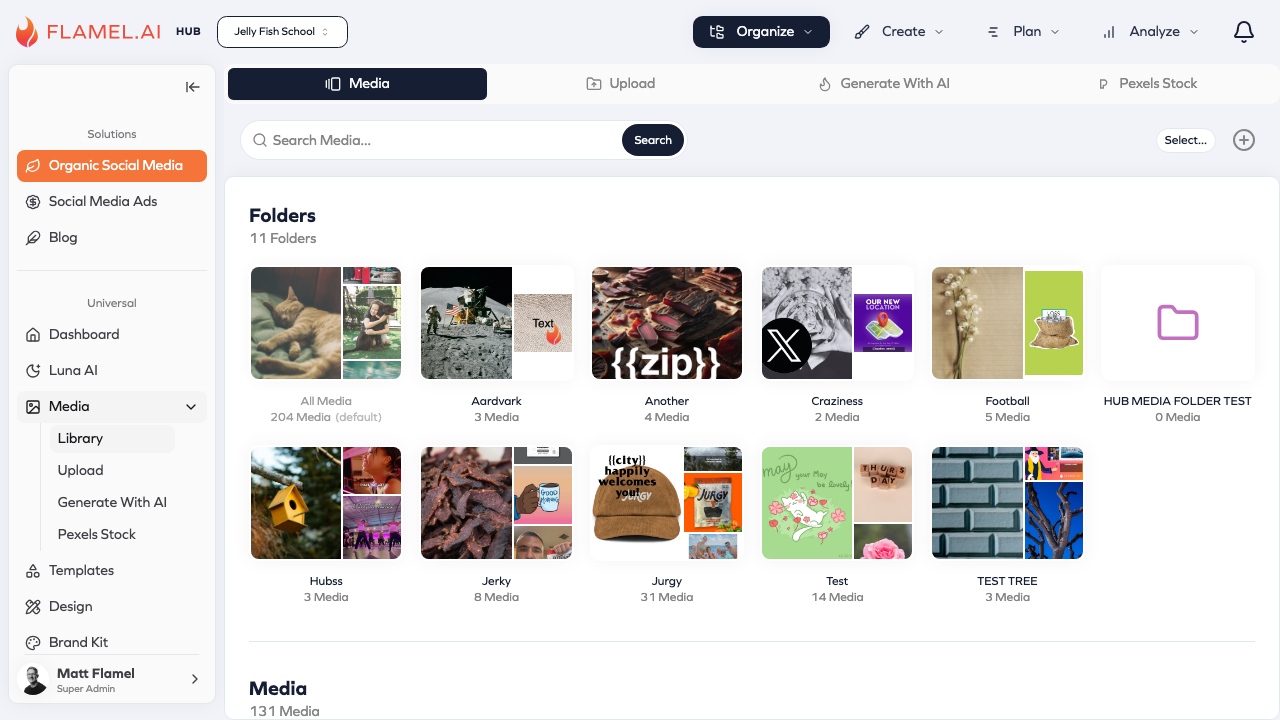
Whether you're uploading photos from a recent shoot, browsing stock images, or generating custom visuals with AI, everything lives here — organized and ready to use in your posts, ads, and campaigns.
Accessing the Library
Click Media in the sidebar to open your library. You'll see your uploaded files organized by date, with options to view as a grid or list. The sidebar shows different ways to add media: upload your own, browse stock photos, or generate with AI.
What You Can Do
The Media Library is more than just storage. It's a complete media management system that helps you keep your visual content organized and accessible.
Browse and search through all your uploaded media. Use filters to find images by type, date, or folder. The search function helps you locate specific files when your library grows large.
Upload new content by dragging files directly into the library or using the upload button. Flamel accepts common image and video formats and processes them automatically for use across different social platforms.
Organize with folders to keep your library tidy. Create folders for campaigns, content types, or time periods. Move files between folders as your organization needs evolve.
Generate images with AI when you need custom visuals. Describe what you want, and AI creates unique images you can use in your content.
Access stock media from Pexels without leaving Flamel. Search for photos and videos, preview them, and add them directly to your library.
Supported File Types
The library accepts the most common media formats used in social media marketing.
For images, you can upload JPG, PNG, GIF, and WebP files. We recommend using images at least 1080x1080 pixels for best quality across platforms — smaller images may appear blurry on high-resolution screens.
For videos, upload MP4 or MOV files up to 4GB each. Keep in mind that different social platforms have their own length limits: Instagram feed videos can be up to 60 minutes, while Stories and Reels have shorter limits. Flamel will warn you if your video exceeds a platform's requirements when you try to use it.
Library Sections
The Media Library has several sections accessible from the sidebar:
- Uploading Media covers how to add new files to your library, including bulk uploads and file requirements.
- Folders explains how to organize your media into a folder structure that makes sense for your workflow.
- AI Generation shows you how to create custom images using AI prompts.
- Stock Media walks through searching and adding free photos and videos from Pexels.
Hub vs Workspace Media
If you're part of a franchise organization, media works differently depending on your role.
Hub users can upload media that becomes available to all workspaces. This is useful for brand assets, campaign images, and approved visuals that every franchisee should have access to.
Workspace users have their own private media library for location-specific content. They can also see and use any media shared by their Hub, though Hub-provided media appears as read-only — workspaces can use it but can't edit or delete it.
This separation ensures brand assets stay consistent while giving each franchisee space for their own local content.