Bulk Upload
Import multiple locations at once using CSV files.
Hub Feature: Bulk upload is available for Hub (franchisor) users to efficiently manage large numbers of locations.
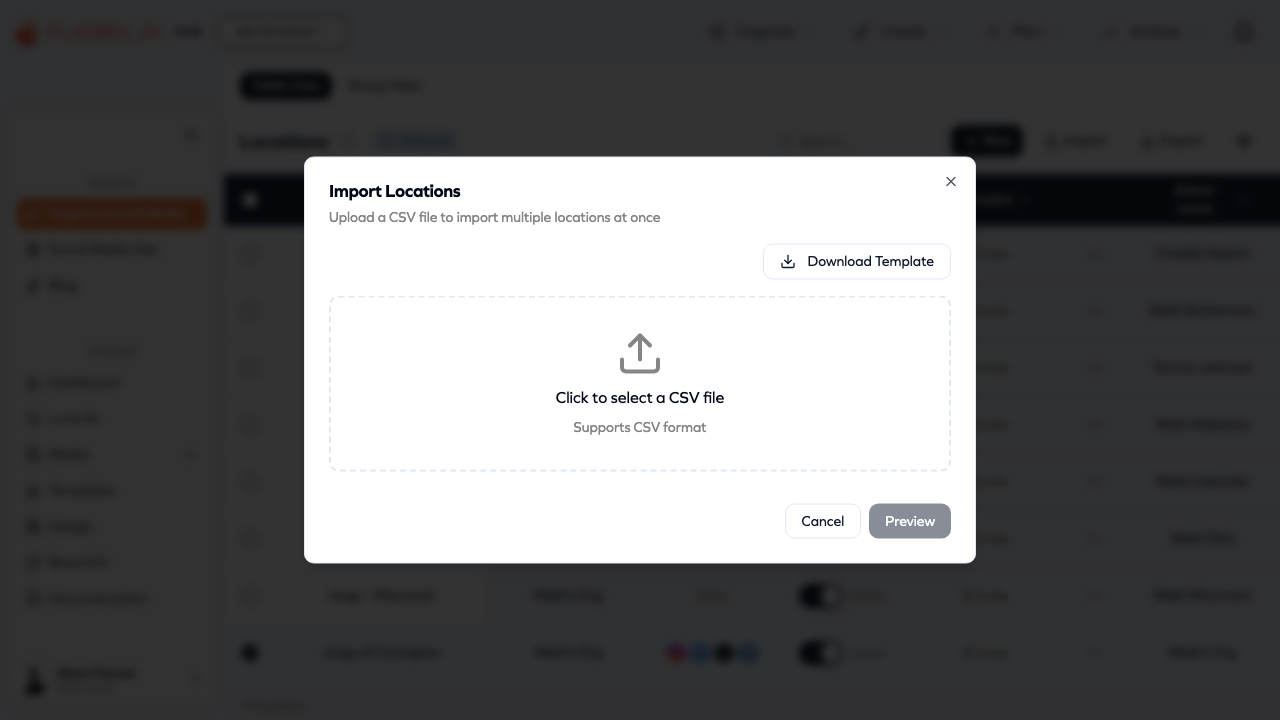
Import hundreds of locations at once using CSV files. The bulk upload feature includes template generation, real-time validation, and detailed error reporting.
Overview
The bulk import workflow:
- Download Template - Get a CSV template with all supported fields
- Fill in Data - Add your location data to the spreadsheet
- Upload File - Upload the completed CSV file
- Validate - Review any validation errors
- Import - Process the import with progress feedback
Getting Started
Step 1: Access Import
- Go to Manage > Locations
- Click the Import button
- The Import modal will open
Step 2: Download Template
- Click Download Template
- A CSV file will download:
location_import_template_{hubName}.csv - Open in Excel, Google Sheets, or any spreadsheet application
Supported Fields
The import template includes these fields:
| Field | Required | Description |
|---|---|---|
| _id | No | Team ID (for updating existing locations) |
| name | Yes | Location name (display name) |
| organization_name | No | Organization name (read-only) |
| admin_name | No | Location administrator name |
| admin_email | No | Administrator email address |
| address | No | Street address |
| city | No | City name |
| state | No | State or province |
| zip | No | Postal/ZIP code |
| contact_email | No | Public contact email |
| phone_number | No | Phone number |
| website_url | No | Website URL |
| time_zone | No | Time zone (e.g., "America/New_York") |
Note: Custom fields defined for your Hub are automatically included in the import template. Required custom fields are marked with an asterisk (*) in the column header.
Custom Fields in Import
If you've created Custom Variables for your Hub, they appear as additional columns in the import template:
- Text/Email/Phone/URL fields: Enter values as plain text
- Number fields: Enter numeric values only
- Boolean fields: Use "true" or "false"
- Select fields: Use one of the predefined option values
- Required fields: Marked with asterisk (*) - must have values
Example with custom fields:
name,city,state,store_manager,local_offer*,has_parking
Downtown Studio,San Francisco,CA,Sarah Johnson,15% off first visit,true
Westside Location,Los Angeles,CA,Mike Chen,Free consultation,false
Preparing Your Data
CSV Format Guidelines
- Save as .csv (Comma Separated Values)
- Use UTF-8 encoding for special characters
- First row must be headers (field names)
- One location per row
Example Data
name,admin_name,admin_email,address,city,state,zip,phone_number
Downtown Studio,Sarah Johnson,sarah@example.com,123 Main St,San Francisco,CA,94102,5551234567
Westside Location,Mike Chen,mike@example.com,456 Oak Ave,Los Angeles,CA,90001,5559876543
Data Formatting Tips
Emails: Must be valid email format
- Valid: sarah@example.com
- Invalid: sarah@ or sarah.example.com
Phone Numbers: 7-15 digits, international formats supported
- Valid: 5551234567, +15551234567, 555-123-4567
- Invalid: 123, 555-CALL-US
ZIP/Postal Codes: US, Canadian, UK, and international formats
- US: 94102, 94102-1234
- Canada: M5V 2T6
- UK: SW1A 1AA
URLs: Must include protocol or be valid domain
- Valid: https://example.com, www.example.com
- Invalid: "example" (too short)
Uploading Your File
Step 1: Select File
- Click Choose File or drag and drop
- Select your completed CSV file
- The system will parse the file automatically
Step 2: Preview Data
After upload, you'll see:
- Preview Table - Spreadsheet view of your data
- Validation Status - Errors highlighted in red
- Row Count - Total locations to import
Step 3: Fix Errors (if any)
If validation errors occur:
- View Error Details - Click on highlighted cells
- Edit Inline - Fix values directly in the preview
- Exclude Columns - Optionally skip problematic columns
- Re-validate - Errors update in real-time
Validation Rules
The import validates each field:
| Field | Validation |
|---|---|
| Name | Required, cannot be empty |
| Email fields | Must be valid email format |
| Phone | 7-15 digits, international OK |
| ZIP | US, Canadian, UK, or international format |
| URL | Must be valid URL format |
| Time Zone | Must be valid IANA time zone |
Common Errors
"Name is required"
- Every row must have a location name
"Invalid email format"
- Check for typos in email addresses
- Ensure proper format: user@domain.com
"Invalid phone number"
- Phone must be 7-15 digits
- Remove extra formatting if needed
"Invalid ZIP code format"
- Check for typos
- Ensure it matches expected postal code format
Importing Data
Step 1: Review Summary
Before importing, review:
- Total locations to import
- Any warnings or skipped rows
- Which fields will be updated
Step 2: Start Import
- Click Import Locations
- Watch the progress indicator
- Wait for completion
Step 3: Review Results
After import:
- Success Count - Locations successfully imported
- Error Count - Locations that failed
- Error Details - Specific errors per row
Updating Existing Locations
To update existing locations via bulk import:
- Export Current Data - Click Export to download current locations
- Edit the Export - Modify values in the spreadsheet
- Keep _id Column - The _id identifies which location to update
- Import the Changes - Upload the modified CSV
Important: Rows with _id values will update existing locations. Rows without _id will create new locations.
Troubleshooting
File Won't Upload
- Ensure file is .csv format
- Check file size (very large files may timeout)
- Try re-saving from Excel/Sheets as CSV
Data Not Appearing
- Verify headers match expected field names exactly
- Check for hidden characters or extra whitespace
- Ensure proper CSV delimiter (comma)
Partial Import
- Some rows may fail while others succeed
- Review error report for specific issues
- Fix failed rows and re-import just those
Encoding Issues
- Special characters appear wrong
- Save as UTF-8 encoded CSV
- Some spreadsheet apps: "Save As" > "CSV UTF-8"
Exporting Data
You can also export location data:
- Click Export on the Locations page
- A CSV file downloads with current location data
- Includes standard fields (custom fields excluded)
Use exports to:
- Create backup copies
- Share data with other systems
- Use as starting point for updates