Uploading Media
Add images and videos to your media library.
Before you can use images and videos in your posts and campaigns, you need to upload them to your Media Library.
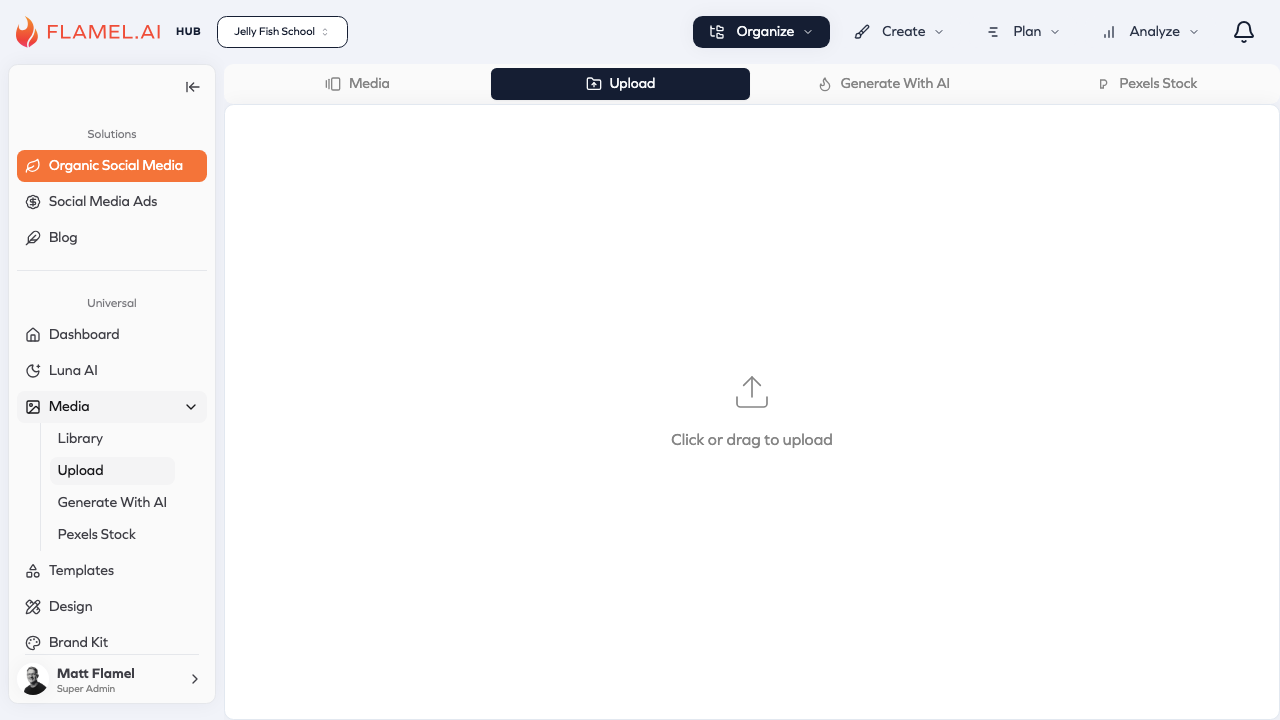
Flamel makes this easy with multiple upload methods and support for all common media formats.
How to Upload
Open your Media Library by clicking Media in the sidebar, then click the Upload tab. You'll see a large upload area where you can add files.
Drag and drop is the fastest method. Simply drag files from your computer (or even from another browser tab) and drop them into the upload area. They'll start uploading immediately, with progress indicators showing how each file is doing.
Browse files if you prefer the traditional method. Click Choose Files or Browse, navigate to the files on your computer, select them, and click Open. This works better when you need to find files buried deep in folders.
Either way, uploads happen in the background. You can continue working in Flamel while files upload — just don't close the browser tab until everything finishes.
Uploading Multiple Files
You're not limited to one file at a time. Select multiple files using standard keyboard shortcuts (Ctrl+click on Windows, Cmd+click on Mac) or drag a selection box around several files in your file browser. Then drag them all into Flamel or use the browse button.
Multiple files upload simultaneously. Flamel shows the progress of each file individually, so you can see which ones finish first and which might be taking longer due to size.
For very large batches, consider uploading in groups of 20-30 files at a time. This prevents browser slowdowns and makes it easier to track progress.
File Requirements
Flamel accepts the most common image and video formats used in social media marketing.
Images can be JPG, PNG, GIF, or WebP format. The maximum file size is 30MB per image, though most social media images are well under this limit. For best results across all platforms, use images at least 1080x1080 pixels. Larger is generally better — Flamel will resize as needed, but it can't add detail to a small image.
Videos should be MP4 or MOV format. The maximum file size is 4GB per video, which accommodates most professional video content. Keep in mind that maximum video length varies by platform: Instagram feed supports up to 60 minutes, while Stories and Reels have shorter limits. Flamel will warn you about length limits when you try to use a video in a post.
If you try to upload an unsupported format, Flamel will let you know and suggest alternatives.
After Uploading
Once your files finish uploading, they appear in your Media Library sorted by upload date (newest first). From here, you can:
Preview any file by clicking on it. Images display full-size; videos play in a preview player.
Organize by moving files into folders. This is especially important after large uploads to keep your library manageable.
Edit images using the built-in design editor. Add text, apply filters, crop to different aspect ratios, or overlay your brand elements.
Use the media in posts, ads, and campaigns by selecting it from the library when creating content.
Upload Best Practices
Name files descriptively before uploading. "product-launch-hero-image.jpg" is much easier to find later than "IMG_3847.jpg". Flamel uses your original filename, so good naming starts on your computer.
Optimize large files before uploading. If you have raw photos from a photoshoot, consider resizing or compressing them first. A 50MB TIFF file will work, but a well-compressed 2MB JPG will upload faster, store more efficiently, and look identical on social media.
Use consistent dimensions when possible. If you know you'll be posting to Instagram, crop and size your images to 1080x1080 or 1080x1350 before uploading. This saves editing time later.
Upload high-quality originals. It's always better to have a larger file and resize down than to start with something too small. You can't add detail back to a low-resolution image.