Drafts
Save and manage unfinished posts.
Not every post is ready to publish the moment you create it. Maybe you're waiting for final approval on the caption, or the media hasn't been finalized yet, or you simply want to come back with fresh eyes tomorrow. Drafts let you save your work without committing to a schedule.
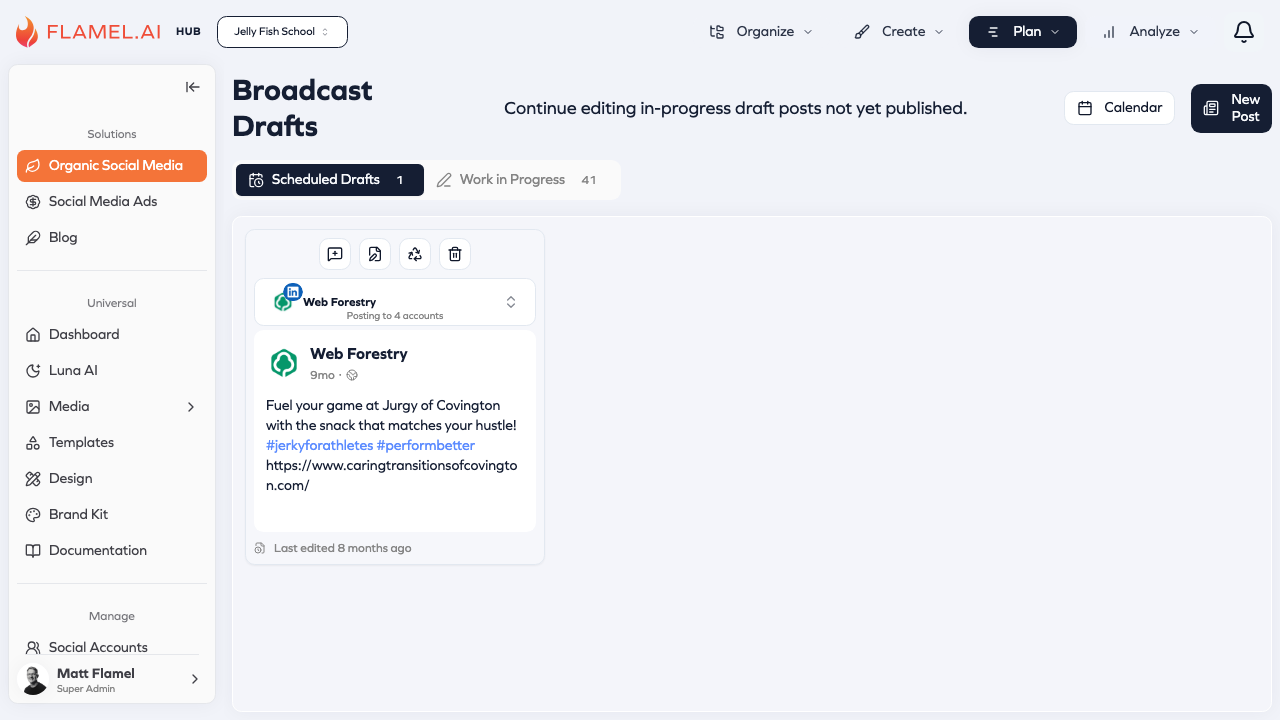
Why Use Drafts
Drafts serve as a holding area for content that isn't quite ready. Instead of leaving the post editor and losing your work, or scheduling something that still needs polish, you can save it as a draft and return whenever you're ready.
This is particularly useful when you're batching content creation. You might write captions for a dozen posts in one sitting, saving each as a draft, then go back later to add media and schedule them. It's also valuable when content needs approval — save a draft, get feedback, make changes, then publish.
Saving a Draft
When you're in the post editor and want to save without scheduling, click Save as Draft at the bottom of the editor. This preserves everything you've added — media, caption, platform selections, and any settings you've configured.
Flamel also auto-saves your work periodically while you're in the editor, so you won't lose content if your browser crashes or you accidentally navigate away. But explicitly saving as a draft ensures your post is easy to find and continue later.
Finding Your Drafts
Navigate to Plan > Drafts from the Organic Social module to see all your saved drafts. The list shows each draft's title (or caption preview if there's no title), the media attached, and when it was last modified.
Drafts appear in reverse chronological order, with your most recently edited work at the top. If you have many drafts, use the search bar to find specific ones by caption text or the date filter to narrow down by when they were created.
Continuing Your Work
Click on any draft to reopen it in the post editor. You'll see everything exactly as you left it — media, caption, selected accounts, and all settings. From here you can continue editing, then either save as a draft again or schedule and publish.
There's no limit to how many times you can edit and re-save a draft. It remains in your drafts list until you either publish it or delete it.
Deleting Content
Deleting Drafts
If you decide not to use a draft, open it and click the delete option to remove it permanently. Flamel asks you to confirm since deleted drafts cannot be recovered.
Clean up your drafts list periodically. Old drafts for promotions that have passed or ideas that no longer fit your strategy just add clutter. A tidy drafts list makes it easier to find the content you actually want to work on.
Deleting Scheduled Posts
To delete a post that's already scheduled but hasn't published yet:
- Find the post on your Calendar or in the post list
- Click on the post to open it
- Click Delete (usually in the post menu or at the bottom of the editor)
- Confirm the deletion
Deleted scheduled posts are moved to the Trash rather than being permanently destroyed immediately.
Deleting Published Posts
Posts that have already published cannot be deleted from Flamel's calendar — they exist on the social platform itself. To remove a published post:
- Delete the post directly on the social platform (Facebook, Instagram, etc.)
- The post will still appear in your Flamel history for reporting purposes
Recovering Deleted Posts
If you accidentally delete a scheduled post, you can often recover it:
From the Trash
- Navigate to Plan > Trash (or look for a Trash/Archive section)
- Find the post you want to recover
- Click Restore to return it to your drafts or scheduled posts
Posts remain in the trash for a limited time (typically 30 days) before being permanently deleted.
What Can't Be Recovered
- Drafts — Deleted drafts are permanently removed immediately
- Published posts — Once deleted from the social platform, they can't be restored through Flamel
- Posts past the retention period — After 30 days in trash, posts are permanently deleted
Best Practices for Avoiding Accidental Deletion
Double-check before confirming — Flamel always asks for confirmation before deleting. Take that moment to verify you're deleting the right post.
Use the calendar view — Seeing posts in context makes it easier to identify which one you actually want to delete.
Consider archiving — If a post is no longer relevant but you might want to reference it later, archive it rather than delete it.
Drafts on the Calendar
Drafts appear on your content calendar with a gray color, distinguishing them from scheduled (blue) and published (green) posts. This visibility helps you remember that you have unfinished content and plan when to complete and schedule it.
If you prefer not to see drafts on the calendar, you can filter them out using the calendar's filter options.