Command Center
Monitor and manage all campaigns across franchisees in one view.
Hub Feature: Command Center is available for Hub (franchisor) users to manage campaigns across all franchisees.
When you're running advertising across dozens or hundreds of franchise locations, checking each account individually is impractical. Command Center gives Hub users a unified view of all paid advertising activity across the network — performance metrics, campaign status, and management tools, all in one dashboard.
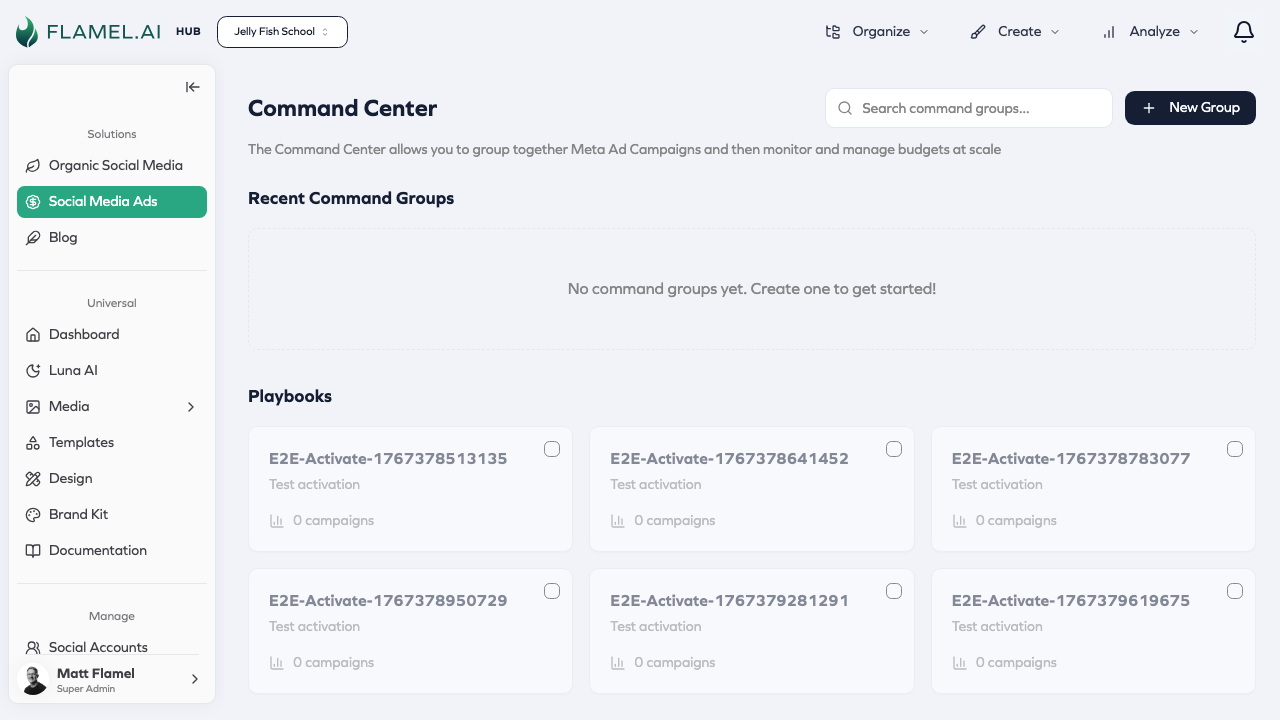
Accessing Command Center
Navigate to Command Center through Analyze > Command Center in the Paid Social Ads module. You can also reach it from any Playbook's detail view by clicking Command Center, which filters to show just campaigns associated with that Playbook.
Understanding the Dashboard
The Command Center dashboard presents several types of information:
Performance cards at the top show key metrics across all franchisees — total spend, total impressions, average cost per click, average click-through rate, and total conversions. These give you an instant health check on network advertising.
Campaign overview lists all active campaigns across workspaces. You can see each campaign's status, spend, and key performance indicators. The list is filterable by workspace, campaign type, date range, and status, so you can focus on what matters.
Workspace sidebar lets you drill down into individual franchisee performance. Select a workspace to see just their campaigns, or view multiple workspaces to compare performance.
Taking Action
Command Center isn't just for viewing — it's for managing. Select campaigns using the checkboxes to enable bulk operations.
Pause or activate lets you stop or start multiple campaigns simultaneously. If you need to halt a promotion across all franchisees immediately, you can do it in one action rather than visiting each account.
Adjust budgets applies percentage increases or decreases across selected campaigns. If performance is strong and you want to scale, increase budgets by 20% across the network with a few clicks.
Update schedules extends or modifies campaign end dates in bulk. When a promotion runs longer than planned, adjust all campaign schedules at once.
These bulk operations save enormous time compared to making changes workspace by workspace, especially when managing a large franchise network.
Custom Dashboards
The default Command Center view shows everything, but you can create custom dashboards focused on specific needs.
Click New Dashboard to start building. Give your dashboard a descriptive name that reflects its purpose — "Holiday Campaign Performance" or "New Franchisee Monitoring" or "West Region Overview."
Select which metrics to display prominently. Choose which workspaces to include — perhaps only certain regions, or only franchisees running a specific Playbook. Save the dashboard for quick access later.
Custom dashboards let you create focused views for different purposes: one for daily monitoring of active campaigns, another for quarterly business reviews, another for tracking a specific promotion across participating franchisees.
Monitoring Best Practices
Check Command Center daily during active campaigns. Advertising problems compound quickly — a malfunctioning campaign wastes budget every hour it runs. Daily checks catch issues before they become expensive.
Set up alerts (see Alerts) to notify you when metrics cross thresholds. Alerts work alongside Command Center, notifying you proactively so you don't have to remember to check.
Use filters to focus on what needs attention. Filter to show only campaigns with high cost per result, or only campaigns with low spend (which might indicate budget or creative issues). Don't try to analyze everything at once.
When you spot problems, diagnose before acting. A campaign with high cost per result might have targeting issues, creative fatigue, or simply be in a competitive market. Understanding the cause leads to better solutions than reflexively pausing everything that underperforms.
Stakeholder Reporting
Command Center data can be exported for reporting to stakeholders who don't have Flamel access. Use the export function to pull performance data into spreadsheets for executive reports, franchise owner communications, or your own analysis.
Create consistent reporting cadences — weekly summaries, monthly reviews, quarterly business reviews — so stakeholders know what to expect and can track progress over time.