Hub Setup Guide
Hub users: create audience types and configure network-wide ad targeting defaults.
As a Hub user, you define the audience types and targeting defaults that all your workspaces use. This guide walks through the complete setup process—from creating your first audience type to syncing configurations across your network.
Before You Start
Prerequisites
- You're logged in as a Hub admin
- Your workspaces have connected their Meta ad accounts
Accessing Ad Configurations
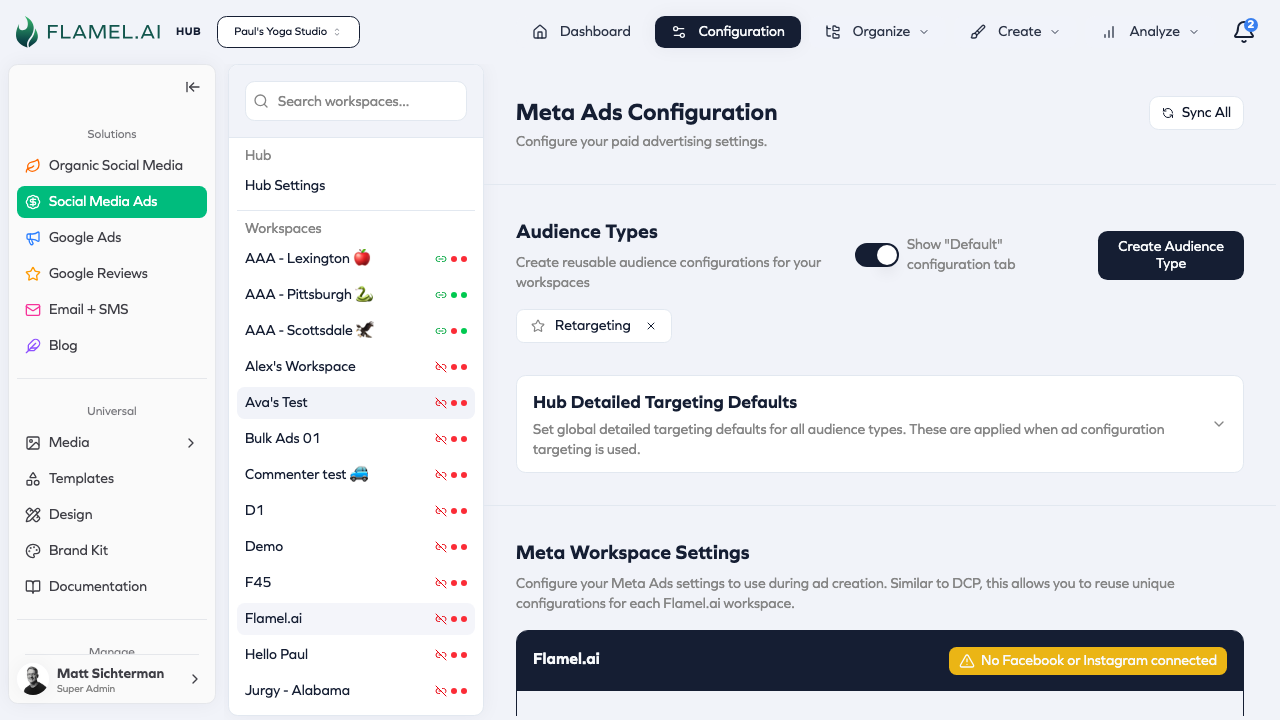
- Navigate to Organize → Ads Configuration in the Paid Social Ads module
- Or click the gear icon next to your workspace selector
Creating Audience Types
Step 1: Open Audience Type Manager
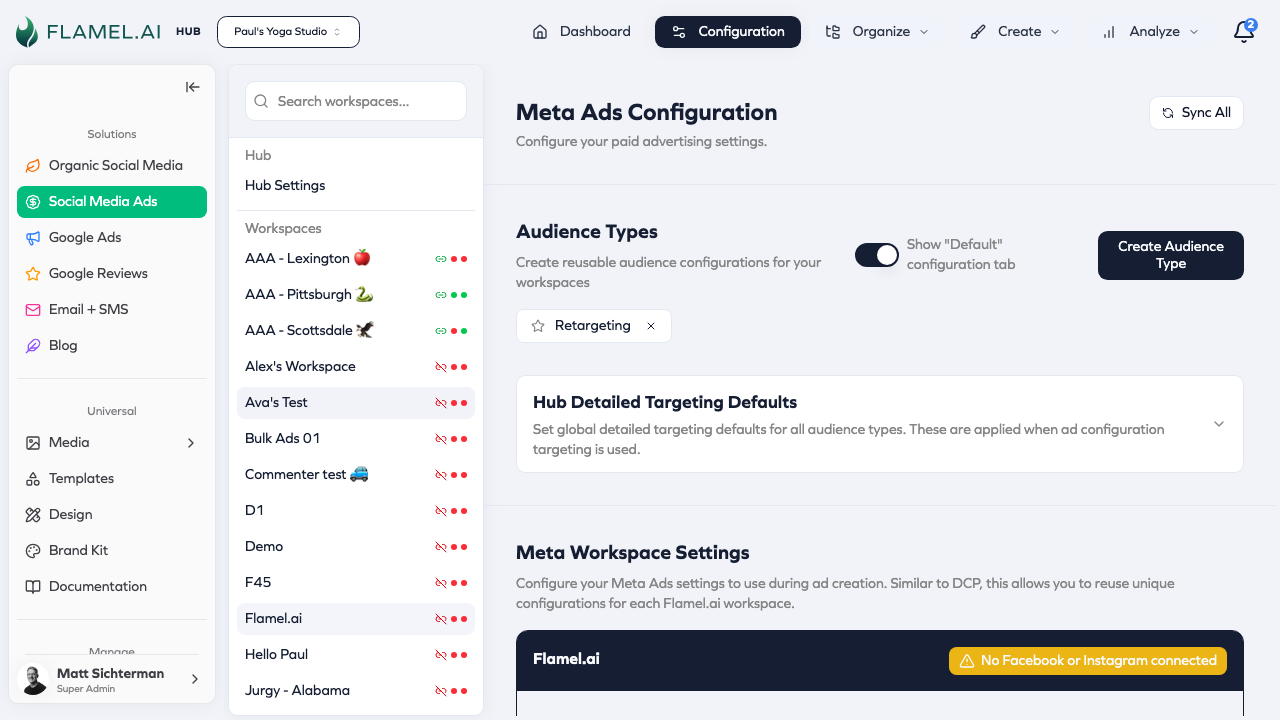
- In the Ads Configuration view, look for the audience type tabs at the top
- Click the "+" button or "Add Audience Type" to create a new one
Step 2: Name and Describe
| Field | Guidance |
|---|---|
| Name | Short, descriptive (e.g., "Database", "Mass", "VIP") |
| Description | Explain when to use this type (visible to workspaces) |
Good names:
- "Database" — Targeting existing customers
- "Mass" — Broad awareness campaigns
- "Lookalike 1%" — Finding similar prospects
Avoid:
- "Type 1", "Audience A" — Not descriptive
- "Test" — Confuses workspaces
Step 3: Configure Initial Targeting
After creating the audience type, configure its targeting:
- Click the new audience type tab
- Fill in the sections below
- Changes save automatically
Configuring the Default Tab
The Default tab sets baseline targeting for all campaigns. Configure this first.
Demographics Section
| Field | Description | Recommendation |
|---|---|---|
| Age Min | Minimum age (13-65) | Start with your typical customer's age range |
| Age Max | Maximum age (13-65) | Don't narrow too much initially |
| Gender | All, Male, or Female | "All" unless product is gender-specific |
Example: A fitness studio might set Age 18-55, All genders.
Custom Audiences Section
Custom audiences let you target or exclude specific groups from Meta.
Include Audiences:
- Customer email/phone lists you've uploaded
- Website visitors (from Meta Pixel)
- Engagement audiences (video viewers, page engagers)
Exclude Audiences:
- Existing customers (for acquisition campaigns)
- Recent converters (avoid over-targeting)
- Competitors' followers (if applicable)
Click "Sync Audiences" to pull the latest custom audiences from your Meta ad account. You'll need to sync before you can select audiences.
Location Targeting
Location determines where your ads show. You can configure multiple location types:
Custom Locations (Recommended)
Target a radius around specific coordinates:
- Latitude/Longitude — Exact location point
- Radius — Distance from that point (in miles)
This is the most common setup for franchise locations.
Cities
Target entire cities or metro areas.
Zip Codes
Target specific postal codes—useful for dense urban markets.
Countries
Target entire countries—usually combined with other targeting.
CTA Configuration
Call-to-action settings determine where people go when they click your ad:
| Field | Purpose |
|---|---|
| Website URL | Landing page for your ads |
| Display URL | Shortened URL shown in ad (e.g., "example.com/offer") |
Lead Capture & Messaging
For lead generation campaigns:
| Field | Purpose |
|---|---|
| Lead Gen Form ID | Meta instant form for collecting leads |
| Messenger Template ID | Messenger conversation template |
Lead forms must be created in Meta Ads Manager first, then synced to Flamel. See Lead Capture Playbooks for setup instructions.
Configuring Audience Type Tabs
Each audience type tab can override the default targeting for specific use cases.
Example: "Database" Audience Type
Purpose: Target existing customers
Configuration:
- Click the "Database" tab
- In Custom Audiences, add your customer list audience
- Leave other sections empty to inherit from defaults
Result: Campaigns using "Database" will target your customer list with default demographics and locations.
Example: "Mass" Audience Type
Purpose: Broad awareness, maximum reach
Configuration:
- Click the "Mass" tab
- In Demographics, set wide age range (18-65)
- Do not add custom audiences (targets everyone)
- Leave locations to inherit from defaults
Result: Campaigns using "Mass" will reach the broadest possible audience in your target locations.
Example: "Lookalike" Audience Type
Purpose: Find people similar to your customers
Configuration:
- Click the "Lookalike" tab
- In Custom Audiences, add your lookalike audience from Meta
- Optionally narrow demographics if your customer base is specific
Result: Campaigns using "Lookalike" will reach people Meta identifies as similar to your source audience.
Advanced Targeting Section
For more granular targeting, expand the Advanced & Detailed Targeting section:
Interest Targeting
Target people based on their interests (hobbies, entertainment, activities):
| Interest Category | Examples |
|---|---|
| Fitness | Yoga, CrossFit, Running |
| Food | Cooking, Restaurants, Healthy eating |
| Business | Entrepreneurship, Small business, Marketing |
Behavior Targeting
Target people based on their behaviors and purchase patterns:
| Behavior Category | Examples |
|---|---|
| Purchase behavior | Online shoppers, Frequent travelers |
| Device usage | iPhone users, Mobile-first users |
| Life events | Recently moved, New job |
Other Advanced Fields
| Field | Purpose |
|---|---|
| Income | Target by income bracket (US only) |
| Education | Target by education level or specific schools |
| Employment | Target by employer or job title |
| Life Events | Target by recent life changes |
Over-targeting can limit your reach and increase costs. Start broader and narrow based on performance data.
Advantage+ Audience
Enable Meta's AI-powered targeting expansion:
| Setting | Description |
|---|---|
| Enabled | Meta can expand beyond your defined audiences |
| Disabled | Strict adherence to your targeting settings |
When to enable:
- Conversion campaigns where you want Meta to optimize
- Testing new markets
- When your defined audiences are too small
When to disable:
- Strict compliance requirements (housing, credit, employment)
- Very specific geographic requirements
- When you need precise audience control
Syncing Configurations to Workspaces
After configuring your Hub settings, sync them to all workspaces.
Sync All Workspaces
- Click "Sync All Workspaces" button
- Flamel creates audience type configurations for every bound workspace
- Workspaces receive the Hub's defaults as their starting point
Preview Before Syncing
Click "Preview Sync" to see:
- How many workspaces will be affected
- Which configurations will be created
- Any workspaces that might be skipped
Incremental Sync
When you add new audience types:
- Create the audience type at Hub level
- Click "Sync All Workspaces"
- New audience type configs are created for all workspaces
- Existing configs are not overwritten
Validating Configurations
Audience Validation
Custom audiences can become invalid if:
- The source audience was deleted in Meta
- The ad account lost access to a shared audience
- The audience expired
To validate:
- Click "Validate Audiences" on a configuration
- System checks all referenced audiences against Meta
- Invalid audiences are flagged
Cleanup Invalid Audiences
To clean up:
- Click "Preview Cleanup" to see what would be removed
- Review the list of invalid audiences
- Click "Cleanup" to remove invalid references
For network-wide cleanup:
- Click "Cleanup All Workspaces" at Hub level
- Removes invalid audiences from all workspace configurations
Start with 2-3 audience types. Name them descriptively (e.g., "Database - Existing Customers", not "Type A").
Troubleshooting
"Workspaces can't see audience types"
Possible causes:
- Audience types not synced to workspaces
- Workspace ad account not connected
Solution:
- Click "Sync All Workspaces"
- Verify workspace has connected Meta ad account
"Audience validation failing"
Possible causes:
- Meta audience was deleted
- Ad account permissions changed
Solution:
- Re-sync audiences from Meta
- Remove invalid audience references
- Select valid replacement audiences
"Configuration not applying to campaigns"
Possible causes:
- Playbook references different audience type
- Campaign was created before configuration change
Solution:
- Check which audience type the playbook/campaign uses
- Edit the correct audience type configuration
- For existing campaigns, changes won't apply retroactively
Next Steps
- Workspace Guide — How workspaces customize their configurations
- Creating Playbooks — Use your audience types in playbooks
- FAQ — Common questions answered