Managing Playbooks
Monitor opt-ins, review creative, extend campaigns, and manage live playbooks.
After publishing a playbook, you'll monitor participation, review workspace submissions, make adjustments, and track performance across all locations. This guide covers everything you need to manage playbooks effectively.
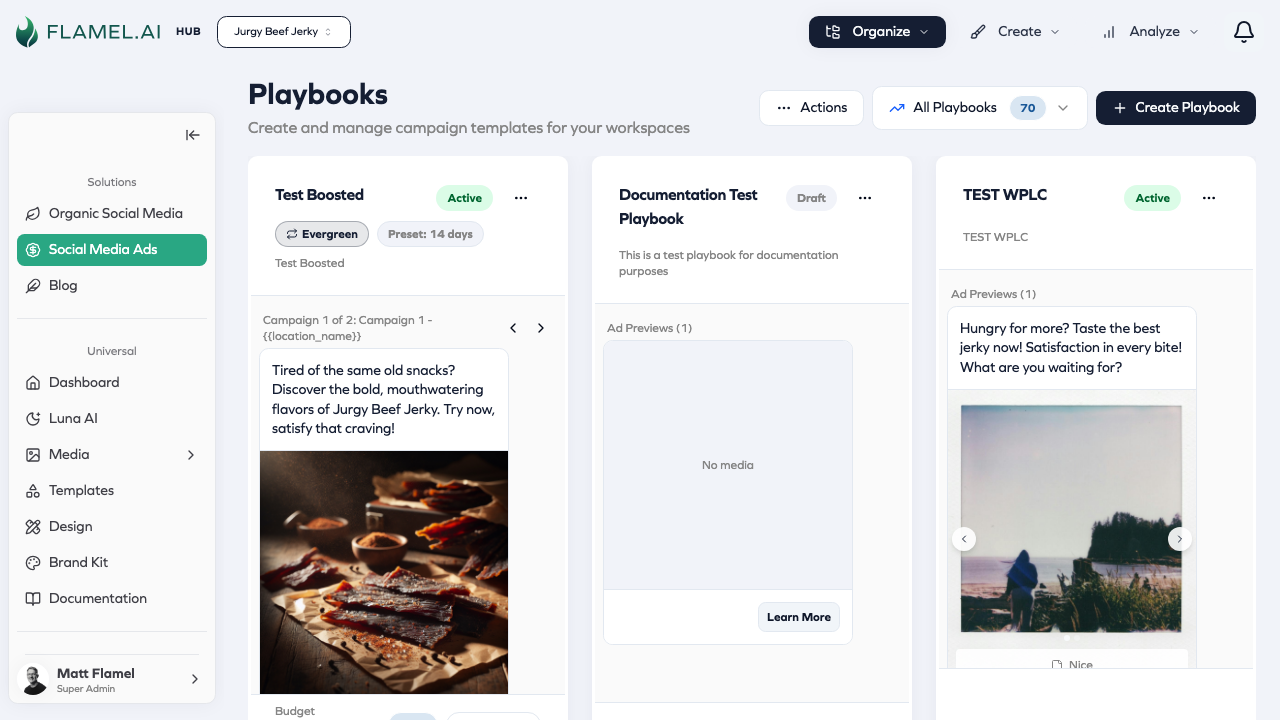
Monitoring Opt-Ins
Opt-In Dashboard
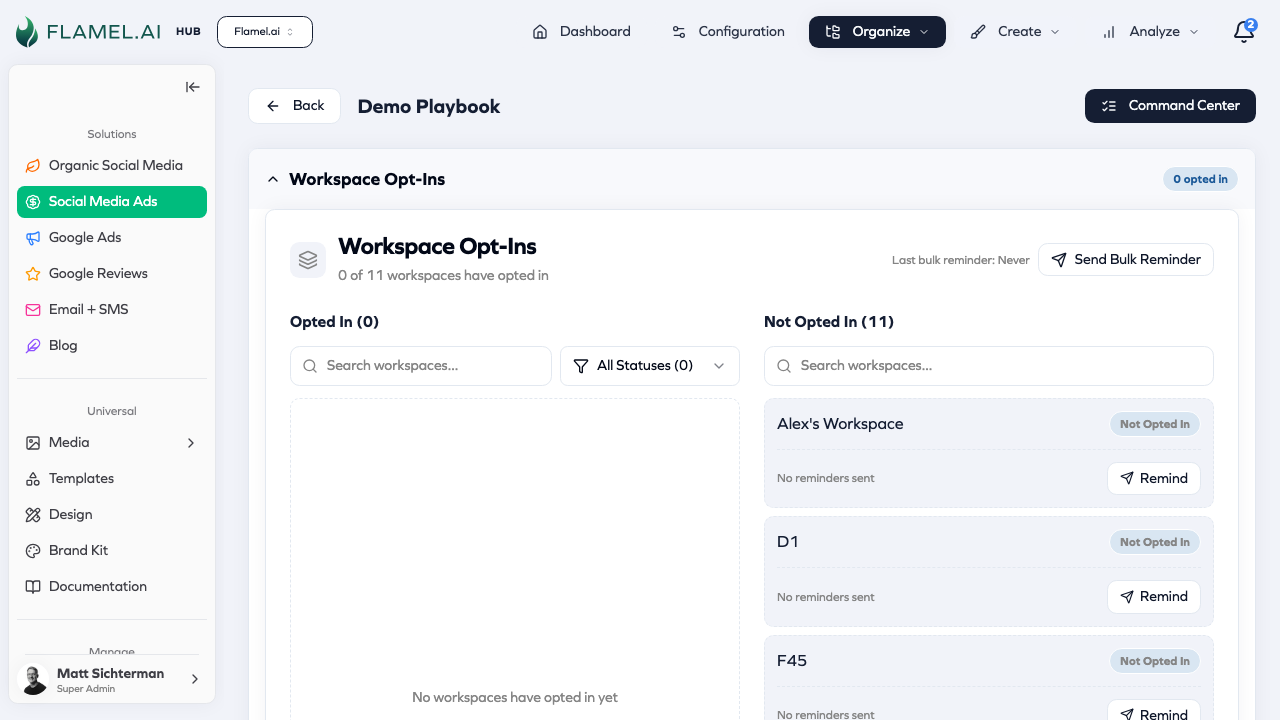
Each playbook shows a dashboard of workspace participation:
- Total eligible — Workspaces that can see this playbook
- Opted in — Workspaces that have submitted opt-ins
- Active — Campaigns currently running
- Pending review — Submissions awaiting your approval
Understanding Opt-In Statuses
| Status | Meaning | What to Do |
|---|---|---|
| Pending | Processing submission | Wait (usually 1-2 seconds) |
| In Review | Workspace submitted media, awaiting hub approval | Review and approve/request changes |
| Deploying | Approved, deployment in progress | Wait for completion |
| Active | Campaign is running | Monitor performance |
| Partially Deployed | Some campaigns succeeded, some failed | Check failures, retry if needed |
| Failed | All campaigns failed to deploy | Investigate error, workspace can retry |
| Cleanup Failed | Deployment failed and cleanup of partial resources also failed | Manual cleanup may be needed in Meta |
| Completed | Campaign finished (reached end date) | Review results; for evergreen, workspace can re-opt |
| Paused | Workspace paused their campaign | No action needed unless you want to investigate |
| Cancelled | Workspace cancelled participation | No action needed |
| Questions Only | Answered questions but opted out of ads | Review responses; no campaign deployed |
When an opt-in is "In Review", you can see its review status (pending review, approved, or changes requested) to track review progress. "Changes Requested" means you've asked for updates—the opt-in stays "In Review" until the workspace resubmits.
Active Status Tracking
The system considers these statuses as "active" for duplicate prevention:
- Pending
- In Review
- Deploying
- Active
A workspace cannot submit a new opt-in while they have one in an active status. This prevents duplicate campaigns.
Creative Review Workflow
When your playbook uses workspace-level creatives, workspaces upload their own media during opt-in. You must review and approve before deployment.
Review Queue
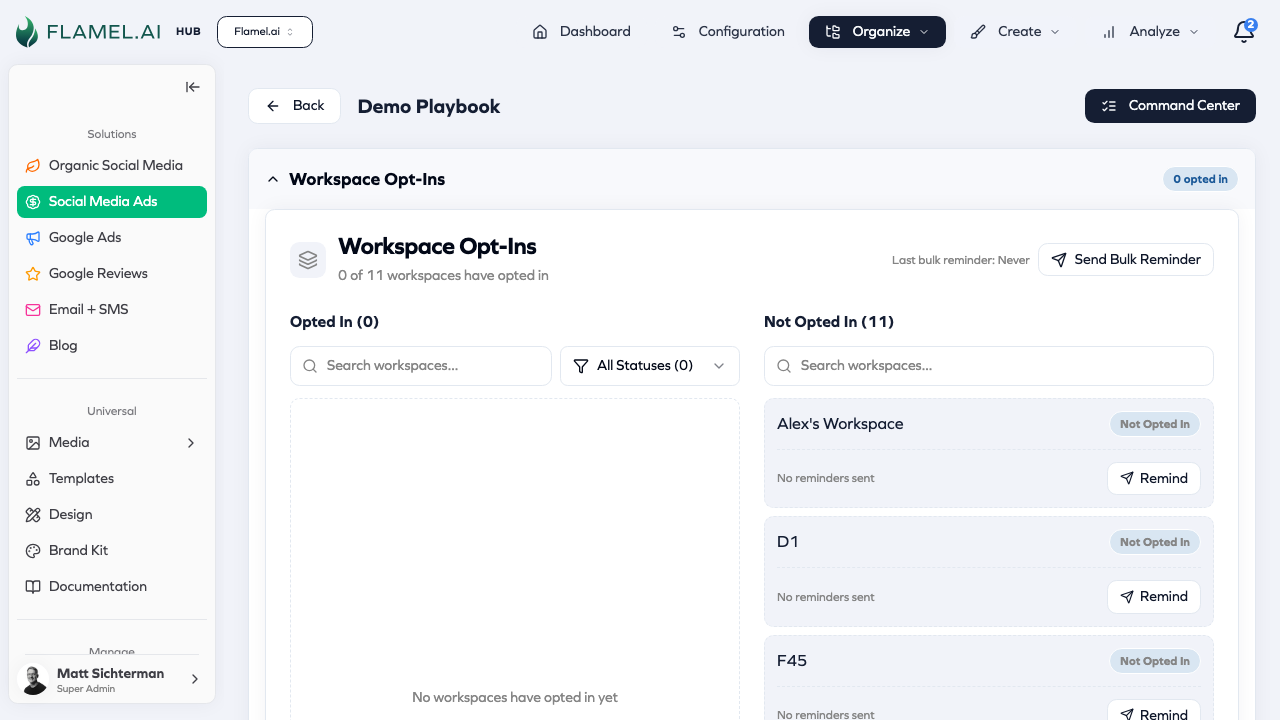
- Go to the playbook detail view
- Look for opt-ins with "In Review" status
- Click to open the review panel
Reviewing Submissions
For each submission, you'll see:
- Workspace name and location
- Uploaded images/videos
- Any answers to opt-in questions
- Budget and schedule selections
Approval Actions
Approve — Creative meets brand standards.
- Click Approve
- Deployment starts immediately
- Workspace receives confirmation email
- Status changes to "Deploying" → "Active"
Request Changes — Creative needs modification.
- Click Request Changes
- Enter feedback explaining what needs to change
- Workspace receives email with your feedback
- Status changes to "Changes Requested"
- Workspace resubmits with updated media
- You review again
Review Comments
When you request changes, your feedback is recorded:
- Comment text
- Timestamp
- Your name
This creates an audit trail of the review process. Workspaces see your feedback and can respond when resubmitting.
Handling Resubmissions
When a workspace resubmits:
- You receive notification (if configured)
- Opt-in returns to "In Review" status
- Review the updated submission
- Approve or request further changes
There's no limit to review rounds, but aim to be clear in feedback to minimize back-and-forth.
Tips for Efficient Reviews
- Set clear guidelines upfront — Include detailed media notes in your playbook so workspaces know expectations
- Use examples — Show what good creative looks like
- Be specific in feedback — "Logo should be in top-left corner" is better than "Fix the branding"
- Batch reviews — Check the review queue at set times rather than constantly
Extending and Adjusting Campaigns
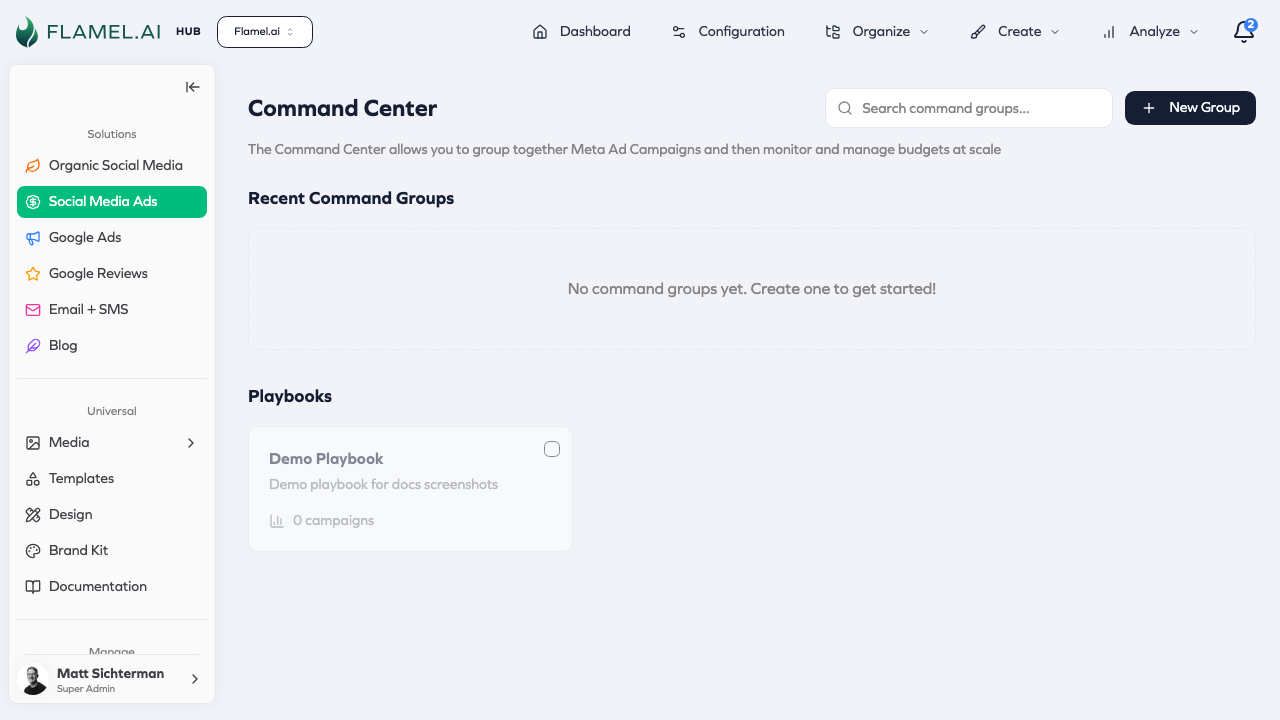
Use Command Center to make changes to running campaigns.
Budget Adjustments
You can increase or decrease budgets for running campaigns.
To adjust budget:
- Go to Command Center
- Find the campaign or ad set
- Click the budget amount
- Choose adjustment method:
- Set specific amount — Enter exact new budget
- Percentage change — Increase/decrease by X%
- Dollar amount — Add/subtract specific amount
- Click Update
Budget limits:
- Minimum: $1.00/day or $5.00/lifetime
- Maximum: $250,000/day or $1,000,000/lifetime
Changes apply immediately to Meta.
Schedule Extensions
Current limitation: Schedule extension is not directly supported in Flamel's Command Center. Use Meta Ads Manager instead:
- In Command Center, find the campaign
- Click Open in Meta Ads Manager
- Edit the campaign end date in Meta
- Changes sync back to Flamel
For evergreen playbooks:
Instead of extending, workspaces can re-opt-in when their run completes, which creates a fresh campaign with new dates. This is the recommended approach.
Pausing and Resuming
To pause a workspace's campaign:
- Go to Command Center
- Find the workspace's campaign or ad set
- Toggle the status to paused
- Confirm
The pause affects only that workspace—other workspaces continue running.
To resume:
- Find the paused campaign
- Toggle status back to active
- Confirm
Editing Ad Copy
You can edit ad text (not media) on running campaigns:
- In Command Center, find the ad
- Click Edit Creative
- Modify:
- Primary text
- Headlines
- Descriptions
- URL tags
- Save changes
Media (images/videos) cannot be changed through Command Center. For media updates, the workspace needs to upload new media and you'd need to work with them directly.
Managing Workspace Targeting
What Workspaces Can Customize
With paid_ads_management permission, workspaces can adjust:
- Location radius — 1-50 miles from their address
- Their Ads Configuration — Per-workspace settings for each audience type
What Stays Hub-Controlled
Hub maintains control over:
- Targeting strategy selection (ads_configuration, manual)
- Audience type definitions
- Detailed targeting (interests, behaviors)
- Conversion tracking configuration
- Age/gender demographics
Handling Targeting Requests
If a workspace requests different targeting:
- For radius changes — Enable their
paid_ads_managementpermission so they can self-serve - For audience changes — Update their workspace's Ads Configuration yourself
- For detailed targeting — Create a new audience type with the requested targeting
Sending Reminders
Individual Reminders
For workspaces that haven't opted in:
- Go to playbook detail view
- Find the "Not Opted In" section
- Click Send Reminder next to a workspace
- Customize message or use default template
- Send
Bulk Reminders
To remind multiple workspaces at once:
- Go to playbook detail view
- Click Send Reminders (bulk action)
- Select workspaces to remind
- Customize message
- Send
Multi-Playbook Reminders
When you have multiple active playbooks:
- Go to Playbooks list
- Select multiple playbooks
- Click Send Combined Reminder
- One email mentions all selected playbooks
- Reduces email fatigue while ensuring awareness
Reminder Strategy
| Timing | Purpose |
|---|---|
| Launch day | Initial announcement |
| 3-5 days later | First follow-up for non-responders |
| 1 week before deadline | Urgency for fixed-date playbooks |
| Weekly (evergreen) | Ongoing awareness for recurring playbooks |
Don't over-remind. 2-3 well-timed reminders are better than daily pestering. Track open rates to optimize timing.
Evergreen Playbook Management
Tracking Re-Runs
For evergreen playbooks, track how often workspaces re-opt:
- Run number — Which run this is (1, 2, 3...)
- Total runs — How many times this workspace has used the playbook
- Last run date — When they most recently participated
Encouraging Re-Engagement
For workspaces that completed a run but haven't re-opted:
- Send a reminder highlighting the playbook is available again
- Share results from their previous run
- Note any updates or improvements you've made
Updating Evergreen Playbooks
You can edit evergreen playbooks. Changes affect new opt-ins only—existing active campaigns keep their original settings.
Consider versioning: "Monthly Awareness v2" when making significant changes, so you can track which version workspaces are using.
Performance Monitoring
In Playbook Dashboard
The playbook detail view shows aggregate metrics:
- Total spend — Combined spend across all opted-in workspaces
- Total results — Combined results (leads, clicks, conversions)
- Average CPR — Average cost per result across network
- Participation rate — Opted in / Eligible workspaces
In Command Center
Click View in Command Center for detailed performance:
- Per-workspace breakdown — Compare individual locations
- Campaign metrics — Spend, results, efficiency by campaign
- Ad performance — Which creative performs best
- Trends — Performance changes over time
Performance Benchmarks
Use network-wide data to identify:
- Top performers — Which workspaces have best results?
- Underperformers — Who needs optimization help?
- Creative winners — Which ads work across locations?
- Budget efficiency — Who gets best CPR?
Editing Published Playbooks
Changes That Apply Immediately
These updates affect all running campaigns:
- Budget range adjustments (within Flamel)
- Individual campaign budget changes (via Command Center)
Changes That Require Re-Opt-In
Major changes create effectively a new version:
- Campaign objective changes
- Major creative overhauls
- New ad sets or campaign structure
- Budget allocation strategy (CBO → ABO)
Existing opted-in workspaces keep their current campaigns. They can opt into the updated version separately if desired.
Communicate changes to workspaces. If you significantly update a playbook, let them know what changed so they can decide whether to re-opt with the new version.
Playbook Lifecycle
Active Playbooks
Running playbooks show:
- Opt-in count and breakdown
- Active campaign count
- Aggregate performance
- Recent activity
Completing Playbooks
For fixed-date playbooks:
- Campaigns automatically stop on end date
- Status changes to "Completed"
- Performance data remains accessible
- Playbook stays visible but marked completed
Archiving Playbooks
To remove a playbook from workspace browsing:
- Go to playbook detail
- Click Archive
- Confirm
Archived playbooks:
- Not visible to workspaces
- Historical data preserved
- Can be unarchived later
- Existing opted-in campaigns continue if still running
Duplicating Playbooks
Create new playbooks based on successful ones:
- Find the playbook to copy
- Click Duplicate
- Modify settings as needed
- Publish as a new playbook
Great for:
- Seasonal variations (update dates/creative)
- A/B testing different approaches
- Regional customizations
Troubleshooting
Low Participation
Possible causes:
- Workspaces don't know about the playbook
- Budget is too high for their market
- Timing doesn't work for them
- Description isn't compelling
Solutions:
- Send reminders
- Lower minimum budget
- Extend opt-in window
- Improve playbook description
High Failure Rate
Possible causes:
- Payment method issues
- Ad account restrictions
- Policy violations
- Targeting problems
Solutions:
- Check error messages in opt-in details
- Contact affected workspaces
- Review creative for policy compliance
- Verify targeting settings
Creative Review Bottleneck
If reviews pile up:
- Set dedicated review times
- Use clear guidelines to reduce revisions
- Consider switching to playbook-level creatives for time-sensitive campaigns
- Delegate reviews to other hub admins
Next Steps
- Playbooks FAQ — Common questions answered
- Command Center — Deep dive into campaign management
- Lead Capture Playbooks — Setting up lead generation