Opting Into Playbooks
Workspace users: discover and deploy playbooks from your Hub with this complete guide.
As a workspace user, playbooks let you launch professionally designed campaigns without building them from scratch. Your Hub has already configured the targeting, creative strategy, and optimization—you provide your details and go live.
This guide walks through the complete opt-in process, explains what each status means, and helps you manage your campaigns.
Discovering Playbooks
In the Social Media Ads module, click Organize → Playbooks to see available playbooks from your Hub.
What You'll See
Each playbook card shows:
- Name — What the campaign is for
- Description — Goals and when to use it
- Objective — Awareness, traffic, leads, or sales
- Budget range — Recommended and minimum spend
- Duration — How long it runs
- Type indicator — One-time or evergreen (repeatable)
Browse available options to find campaigns that match your current marketing goals and budget.
Evergreen vs One-Time
One-Time Playbooks — Run once during a specific period. When the campaign ends, that's it.
Evergreen Playbooks — Can be run repeatedly. After one run completes, you can opt in again with a new budget and schedule. Look for the "Evergreen" badge.
The Opt-In Process
Click a playbook to start opting in.
Step 1: Review Details
Read what this campaign does, who it targets, and what you'll need to provide.
Pay attention to:
- Campaign objective (what it optimizes for)
- Target audience description
- Required media specifications
- Budget range (minimum and recommended)
- Schedule/duration
- Any questions you need to answer
Make sure this playbook aligns with your current marketing goals before proceeding.
Step 2: Answer Questions (If Required)
Some playbooks include questions your Hub wants you to answer. These might cover:
- Store specialties or unique offerings
- Local market characteristics
- Promotion details
- Preferred messaging angles
Be specific — Your answers may influence how your campaign performs or help your Hub provide better support.
If a question seems unclear, contact your Hub for guidance. Better to ask than guess.
Step 3: Upload Media (If Required)
If the playbook requires workspace-provided creative:
- Review the media guidelines from your Hub
- Upload your images or videos
- Follow size/format requirements
- Preview how they'll appear in ads
Media specifications:
- Images: Minimum 1080x1080 pixels
- Videos: 1080x1080 or 9:16 vertical, under 15 seconds recommended
- Quality: Clear, well-lit, professional-looking
Tips for good ad media:
- Show your product, service, or location
- Include people when possible
- Minimal text on images (Meta may limit delivery for text-heavy images)
- Avoid stock photos that look generic
When you upload media, your Hub reviews it before your campaign deploys. This ensures brand compliance across the network.
Step 4: Select Existing Posts (If Applicable)
For "Existing Posts" playbooks, you select organic posts from your Facebook or Instagram page to use as ad creative.
- Review available posts from your pages
- Select posts that performed well organically
- Choose posts that align with the campaign goal
This is a great way to boost content that's already proven to resonate with your audience.
Step 5: Confirm Budget
Review and optionally adjust your budget:
- Recommended budget — What your Hub suggests based on experience
- Minimum — The lowest you can spend (required threshold)
- Maximum — The cap on spending (if any)
If workspace budget control is enabled: You can adjust the budget within the allowed range. Consider your market size—larger markets typically need more budget to see results.
If budget is fixed: Your Hub has set a specific amount. You'll see the budget but cannot change it.
Before confirming:
- Ensure you have a payment method on file
- Understand if budget is daily or lifetime
- Know how long the campaign runs
Step 6: Set Schedule (If Allowed)
Some playbooks let you choose your dates:
For one-time playbooks (if schedule control enabled):
- Pick your start date
- Pick your end date (for lifetime budgets)
- Align with your local promotions or events
For evergreen playbooks:
- Pick your start date
- End date is calculated based on duration (e.g., 14 days from start)
If your Hub has set fixed dates, you'll see those instead of adjustment options.
Step 7: Customize Targeting (If Available)
Some playbooks allow location radius customization:
- Default radius — What your Hub set
- Adjustable range — 1-50 miles from your location
Adjust based on your market:
- Dense urban areas: Consider smaller radius (5-10 miles)
- Suburban/rural: Consider larger radius (25-50 miles)
Step 8: Submit
Click Opt In to submit your participation.
What happens next depends on your playbook type:
| Scenario | Next Steps |
|---|---|
| Hub-provided creative | Deployment starts immediately |
| Workspace-provided creative | Goes to Hub review first |
| Existing posts | Deployment starts immediately |
You'll receive confirmation when your campaign is live.
Understanding Opt-In Status
After submitting, track your status in My Playbooks.
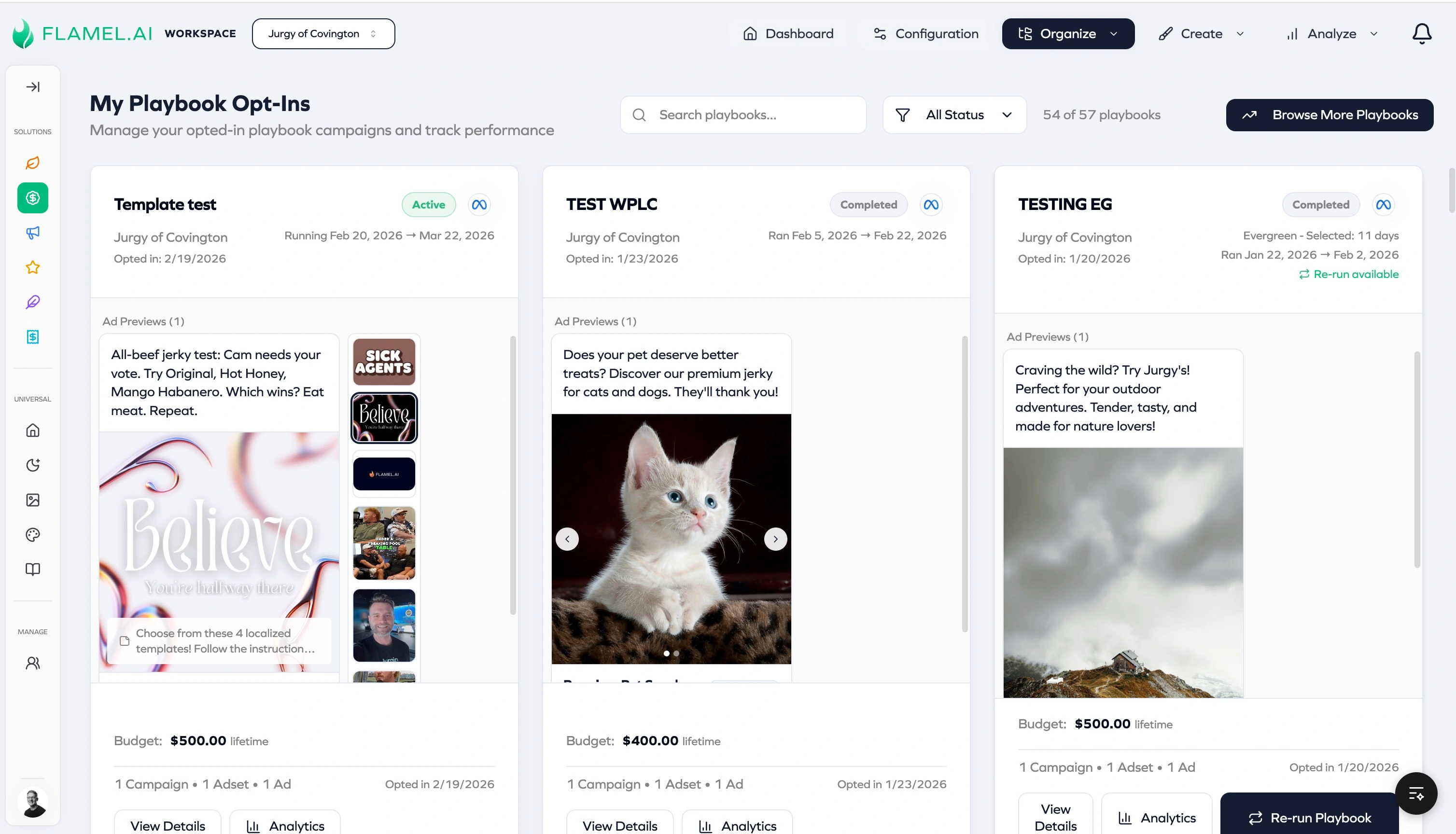
Status Meanings
| Status | What It Means | What to Do |
|---|---|---|
| Pending | Your opt-in is being processed | Wait (usually seconds) |
| In Review | Hub is reviewing your submitted media | Wait for approval or feedback |
| Deploying | Your campaign is being created in Meta | Wait for completion |
| Active | Campaign is running! | Monitor performance |
| Partially Deployed | Some parts succeeded, some failed | Check details for issues |
| Failed | Deployment didn't work | Review error, try again |
| Cleanup Failed | Deployment failed and cleanup also failed | Contact your Hub or support |
| Completed | Campaign finished running | Review results |
| Paused | You paused your campaign | Resume when ready |
| Cancelled | You cancelled participation | Can re-opt if desired |
"Changes Requested" appears when your opt-in is "In Review" but your Hub has asked for updates. Your opt-in technically stays in the "In Review" status—you'll see a "Changes Requested" indicator telling you to resubmit with updated media.
What "In Review" Means
When your Hub uses workspace-level creatives, your media goes through a review process:
- You submit opt-in with your images/videos
- Status becomes "In Review"
- Hub admin reviews your creative
- If approved: Deployment starts → Active
- If changes needed: You receive feedback
Handling "Changes Requested"
If your Hub requests changes:
- Check your email or the opt-in details for feedback
- Read exactly what needs to change
- Open the opt-in and click Resubmit
- Upload corrected media
- Submit again for re-review
Common reasons for change requests:
- Wrong image size or quality
- Missing branding elements
- Text doesn't match guidelines
- Image content not appropriate
Tracking Time in Review
Most hubs review within 24-48 hours. If you're waiting longer:
- Check if you submitted during a weekend/holiday
- Contact your Hub to ask about status
- Ensure your email notifications are working
After Opting In
Your campaign appears in My Playbooks where you can monitor and manage it.
Viewing Performance
See how your ads are performing:
- Spend to date — How much you've spent
- Results — Leads, clicks, conversions (depends on objective)
- Cost per result — Your efficiency metric
- Impressions — How many times ads were shown
- Reach — Unique people who saw your ads
Managing Your Campaign
Pause — Temporarily stop spending while keeping the campaign structure.
- Click Pause on your active campaign
- Ads stop delivering immediately
- Resume anytime
Resume — Restart a paused campaign.
- Click Resume
- Ads start delivering again
Update Budget — Adjust spending if your Hub allows.
- Click the budget amount
- Enter new budget within allowed range
- Changes apply to remaining campaign
Comparing to Network
Some dashboards show how your performance compares to other workspaces:
- Network average cost per result
- Your ranking among peers
- Benchmarks by market size
This helps you understand if there's room for improvement or if you're outperforming.
Evergreen Playbooks: Re-Opting In
Evergreen playbooks can be run multiple times. Here's how it works:
When You Can Re-Opt
You can opt in again when:
- Your previous run is Completed (reached end date)
- No active run exists (not pending, in review, deploying, or active)
Re-Opt-In Process
- Go to Playbooks shop
- Find the evergreen playbook (may show "Opt In Again")
- Click to start a new opt-in
- Set your new budget
- Set your new start date
- Submit
Each run is tracked separately. You'll see:
- Run #1 — Your first time
- Run #2 — Second time
- And so on...
Why Use Evergreen Playbooks
- Seasonal flexibility — Run "New Customer Special" whenever you want
- Testing — Try different budgets to see what works
- Ongoing needs — Monthly awareness pushes
- Local events — Tie to your schedule, not corporate's
Troubleshooting
My Deployment Failed
Common causes:
- Payment method issue (expired card, insufficient funds)
- Ad account restricted by Meta
- Policy violation in creative
What to do:
- Check the error message in your opt-in details
- For payment issues: Update payment method in Meta Business Settings
- For restrictions: Contact Meta or your Hub
- For policy issues: Review Meta's advertising policies
- Once resolved: Click Retry on the failed opt-in
I Can't Find the Playbook
Possible reasons:
- Not available to your workspace
- Already have an active opt-in
- Playbook was archived
- You're not in the right context
Check:
- Are you logged in as your workspace (not Hub)?
- Do you have an existing opt-in for this playbook?
- Ask your Hub if the playbook is available to you
My Ads Aren't Getting Results
Possible causes:
- Budget too low for your market
- Creative not resonating
- Targeting too narrow
- Campaign just started (needs optimization time)
What to try:
- Give it time — Campaigns often need 3-7 days to optimize
- Check budget — Is it sufficient for your market size?
- Review creative — Is it high quality and relevant?
- Contact Hub — They can see your performance and advise
My Hub Keeps Requesting Changes
Tips to get approved faster:
- Read the media guidelines carefully
- Look at examples your Hub provides
- Use high-quality, clear images
- Follow brand guidelines exactly
- Ask for clarification if unsure
Understanding Your Results
Good Performance Indicators
- Cost per result below network average — You're more efficient than peers
- Consistent daily results — Campaign is stable
- Improving metrics over time — Optimization is working
- Results within expected range — Meeting objectives
Warning Signs
- Zero impressions — Budget too low or targeting too narrow
- Impressions but no clicks — Creative may not resonate
- Clicks but no results — Landing page or offer issue
- Very high cost per result — May need optimization
What Affects Performance
Things in your control:
- Creative quality (if you provide it)
- Budget level
- Having a good landing page
- Product/offer attractiveness
Things your Hub controls:
- Targeting settings
- Campaign structure
- Optimization goals
- Bid strategy
Next Steps
- Playbooks FAQ — Common questions answered
- Analytics — Understanding your performance data